Quick answer
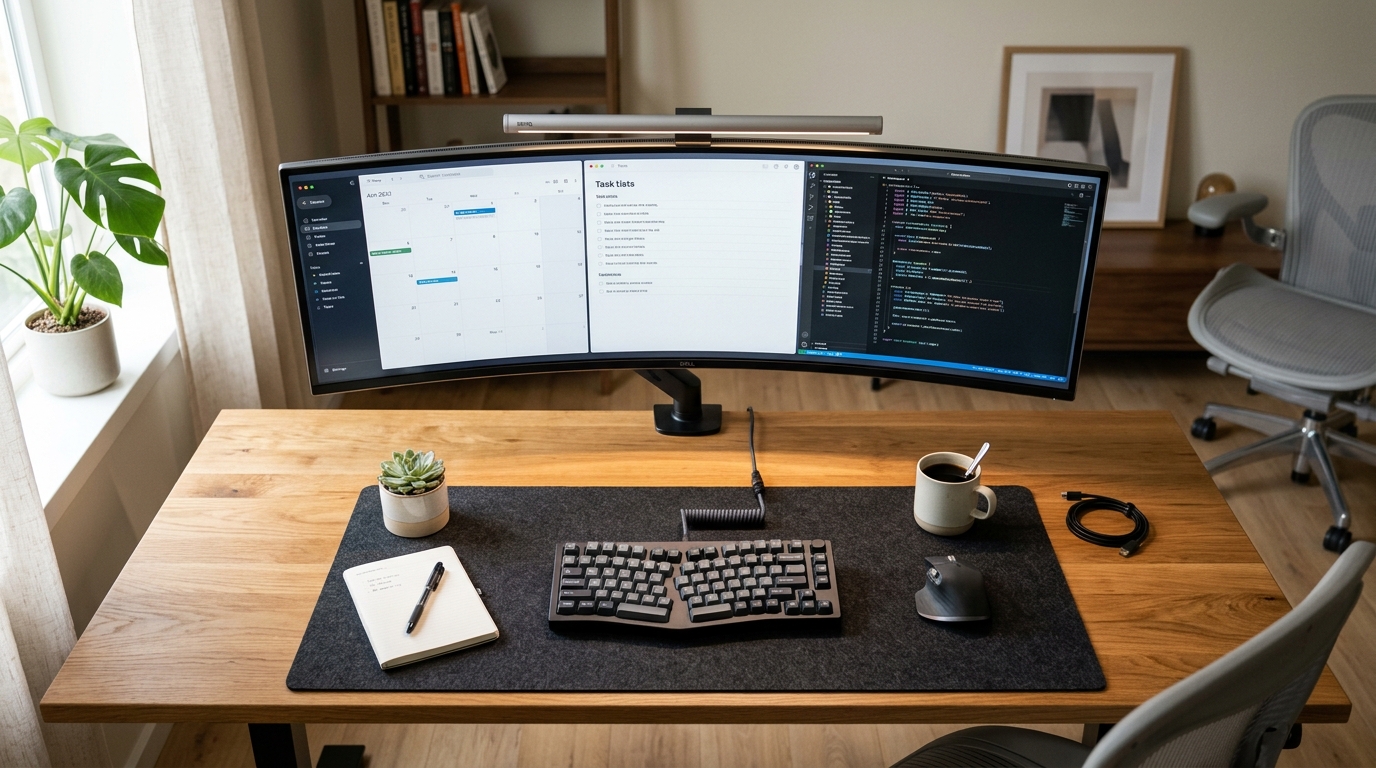
- Display height & depth: Align screen top to eye level at 50–75 cm distance, reclaiming ~35% of desk space.
- Task illuminance: Target 500 lux on the keyboard plane with zero screen reflection.
- Cable architecture: Consolidate all power supplies and adapters into a single under-desk steel raceway.
- Work mat: Anchor your keyboard and mouse on a 900×400 mm micro-weave mat for uniform friction.
Novelty desk accessories—like RGB light strips, wooden headphone perches, and tabletop figurines—crowd social media feeds but fail to solve daily physical friction. When your neck aches from a low screen, your eyes tire under uneven light, or your mouse catches on a loose charging cord, your concentration breaks down.
True workstation efficiency depends on two disciplines: physical ergonomics (the science of designing equipment to fit the human body's posture and movement) and visual ergonomics (the design of visual environments to optimize ocular comfort and processing efficiency). Eliminating mechanical strain and visual distractions preserves cognitive stamina for sustained deep work.
Productivity essentials vs overrated decorative desk items
Distinguish between tools that remove physiological bottlenecks and decorative accessories that consume workspace without improving output.
| Category | High-Impact Essential | Overrated Decorative Item | Primary Benefit |
|---|---|---|---|
| Display mount | Articulated gas-spring monitor arm | Wooden shelf riser | Frees 30–40% desk depth; enables millimeter focal adjustment. |
| Workspace lighting | Asymmetrical optical light bar | Bare-bulb desk lamp | Delivers 500 lux across inputs without casting screen glare. |
| Cable control | Under-desk steel cable tray | Peel-and-stick cord clips | Houses transformers overhead; runs a single wall drop. |
| Surface interface | 900×400 mm micro-weave desk mat | Hard leatherette blotter | Calibrates mouse tracking and eliminates cold surface shock. |
| Input devices | Split ergonomic keyboard & vertical mouse | Ultra-thin chiclet keyboard | Maintains neutral pronation to reduce carpal tunnel pressure. |
Why does an articulated monitor arm reclaim 30% of your usable depth?
Factory monitor stands are designed for inexpensive manufacturing rather than desktop utility. Most factory pedestals feature wide feet or heavy rectangular plates occupying 250×300 mm directly beneath your central gaze. On standard 60 cm to 70 cm deep office desks, that pedestal consumes over one-third of the usable space between your keyboard and wall.
Clamping an articulated arm to the rear desk edge and mounting the screen via a standard VESA mount (Video Electronics Standards Association standardized four-hole pattern for monitor brackets) clears the desk area below the screen for notebooks, keyboards, or reference materials.
An articulated arm also supports neutral posture (the joint position where physical stress on muscles and ligaments is minimized). A balanced gas-spring counterbalance (a pneumatic cylinder system calibrated to match screen weight for smooth three-axis positioning) enables immediate fine-tuning:
- Height: Positioning the top bezel at eye level prevents cervical spine flexion (the downward bending of the neck that strains upper spinal discs).
- Focal depth: Adjusting distance between 50 cm and 75 cm accommodates eyesight variations and text sizes without requiring you to hunch forward.
- Tilt angle: A 10-to-20-degree upward tilt matches the natural downward angle of your eyes, eliminating trapezoidal distortion.
How does an asymmetrical light bar reduce ocular fatigue without glare?
Overhead ceiling lights and traditional adjustable desk lamps generate reflections on monitor glass or create intense bright spots on the desktop. The resulting high-contrast differences force your eyes to constantly adapt as your view shifts between the screen and desk surface.
A monitor-mounted light bar uses an asymmetric optical design (a light reflector that casts light forward onto the desk while shielding the monitor panel). Because the optical beam cuts off right at the display glass, it illuminates the physical desk without producing specular glare (mirror-like surface reflections that wash out screen contrast and cause eye strain).
Calibrating task lighting involves three factors:
- Target illuminance: Providing 400 to 600 lux (the SI unit of illuminance measuring luminous flux per unit area) across your primary typing and writing surface.
- Luminance balance: Equalizing desk light with screen output minimizes ocular accommodation fatigue (the muscular exhaustion caused by the eyes continually adjusting pupil diameter between contrasting zones).
- Color quality: Choosing an illuminator with a Color Rendering Index (a metric measuring a light source's ability to show colors accurately against natural daylight, abbreviated CRI) of Ra ≥ 95 improves contrast and text legibility.
What makes an under-desk cable tray essential for seated-to-standing focus?
Unmanaged cables hanging around your feet or bunched behind displays generate both visual distraction and equipment hazards. Dangling cords pull against ports during desk height adjustments, accumulate dust, and risk getting caught on chair armrests or knees.
An under-desk wire basket or steel channel attaches under the rear surface. By placing a heavy-duty surge strip inside this channel, every adapter, docking station, monitor transformer, and peripheral connects underneath the desk surface rather than across the floor.
This setup establishes a single umbilical drop (a single consolidated cable bundle carrying mains electricity from wall outlets to the desk). This design provides key advantages:
- Sit-stand safety: Because the power strip and power bricks rise and fall with the desk frame, cords never stretch or pull out of ports during height adjustments.
- Cable preservation: The open raceway protects the minimum bend radius (the tightest circular curve a cable can sustain without damaging internal conductors) for delicate Thunderbolt and DisplayPort lines.
- Interference control: The steel channel separates high-voltage AC cables from sensitive audio and video signals, mitigating electromagnetic interference (unwanted signal disturbance from external electromagnetic fields, abbreviated EMI).
Why does a large wool felt or micro-weave desk mat improve input accuracy?
A large desk mat is often viewed as purely aesthetic, but in daily computer work, it serves as an essential functional surface. Raw laminate, lacquered hardwood, and glass create cold contact points, collect perspiration, and present irregular tracking textures.
A 900×400 mm mat made from micro-weave synthetic cloth or dense wool felt delivers three direct improvements:
- Consistent sensor tracking: Micro-weave textiles provide steady kinetic friction (the constant resistive force encountered when an object glides across a surface) and low static friction (the initial force required to initiate movement), preventing mouse stutter during precision tasks.
- Acoustic dampening: Dense 3 mm to 5 mm padding absorbs high-frequency vibrations from keyboard switches, reducing desk echo during work calls and concentration blocks.
- Workflow boundary: A full-size pad creates a distinct visual boundary for your primary tools, discouraging incidental clutter from creeping into your active typing area.
Actionable step-by-step checklist for configuring a high-productivity desk
Use this sequential process to configure a reliable, friction-free workstation:
- Clear the desktop entirely: Remove all monitors, devices, and wiring to start from an empty surface.
- Check mounting clearance: Confirm your desk has at least 50 mm of rear overhang and 18–35 mm thickness to support a C-clamp monitor arm securely.
- Install the under-desk tray: Mount a rigid steel cable raceway underneath the desk and seat a multi-outlet surge protector inside it.
- Attach the monitor arm: Secure the VESA plate to your screen, mount the display onto the arm, and adjust gas-spring tension until the screen balances without sagging.
- Set ergonomic eye-line: Sit in your normal working posture and position the screen so the top bezel aligns with eye height at an arm's length (60–70 cm).
- Route display wiring: Run power and video cords through the monitor arm channels directly into the under-desk tray.
- Mount the light bar: Place the asymmetric light bar on the top monitor bezel, angle the beam away from the screen face, and adjust brightness to 500 lux.
- Establish the input zone: Lay down the 900×400 mm mat, align your keyboard and mouse, and secure any remaining cord slack in the tray with hook-and-loop ties.
If the free fixes are not enough
Before buying new equipment, try no-cost postural adjustments: elevate your monitor on books, bundle loose cables using reusable ties, and position your workstation perpendicular to windows. When those remedies reach their physical limits, consider these targeted upgrades:
| Worker Situation | Underlying Bottleneck | Targeted Hardware Solution |
|---|---|---|
| Desk depth under 65 cm with neck strain | Factory stand forces display too close; looking downward causes neck fatigue. | Heavy-duty articulated gas-spring monitor arm with clamp base (VESA 75/100 compatible). |
| Evening eye fatigue and headaches | Overhead fixtures cause monitor glare; dark desk areas force pupil re-dilation. | Asymmetrical monitor light bar with Ra ≥ 95 CRI, 4000K neutral light, and auto-dimming. |
| Cords snagging or unplugging on sit-stand desk | Loose cords pull against wall outlets when cycling between seated and standing height. | Under-desk steel cable management raceway paired with a multi-outlet surge rail. |
| Forearm tenderness and erratic mouse tracking | Cold laminate compresses wrist nerves; uneven desk texture creates cursor jitter. | 900×400×4 mm micro-weave desk mat with anti-fray stitched perimeter and non-slip rubber base. |
Sources and citations
- ISO 9241-5:2024 (Workstation layout and postural requirements): International ergonomic standards for viewing distances, screen placement, and postural angles during computer operation.
- OSHA Computer Workstations eTool: United States Occupational Safety and Health Administration recommendations for workstation setup, monitor heights, and task lighting.
- Cornell University Ergonomics Web (CUErgo Guidelines): Research-based workstation recommendations regarding monitor viewing envelopes, seated posture, and reach distances.
- Illuminating Engineering Society (IES RP-1-20 Office Lighting): Guidelines specifying 400 to 600 lux illuminance levels for reading tasks and glare prevention on visual displays.
- ANSI/HFES 100-2007 (Computer Workstations): Human factors specifications defining ergonomic viewing angles, clearance dimensions, and arm-reach zones.
Frequently asked questions
- What is the single most impactful item to add to a desk for productivity?
- An articulated monitor arm provides the largest ergonomic and functional boost by lifting the display to natural eye level and reclaiming 30 to 40 percent of usable desktop depth beneath the screen.
- Do monitor light bars actually improve focus or are they just decorative?
- Quality monitor light bars use asymmetric optical reflectors to cast 500+ lux across your keyboard and document work zone without reflecting glare off the monitor glass, directly reducing pupil dilation strain during long evening sessions.