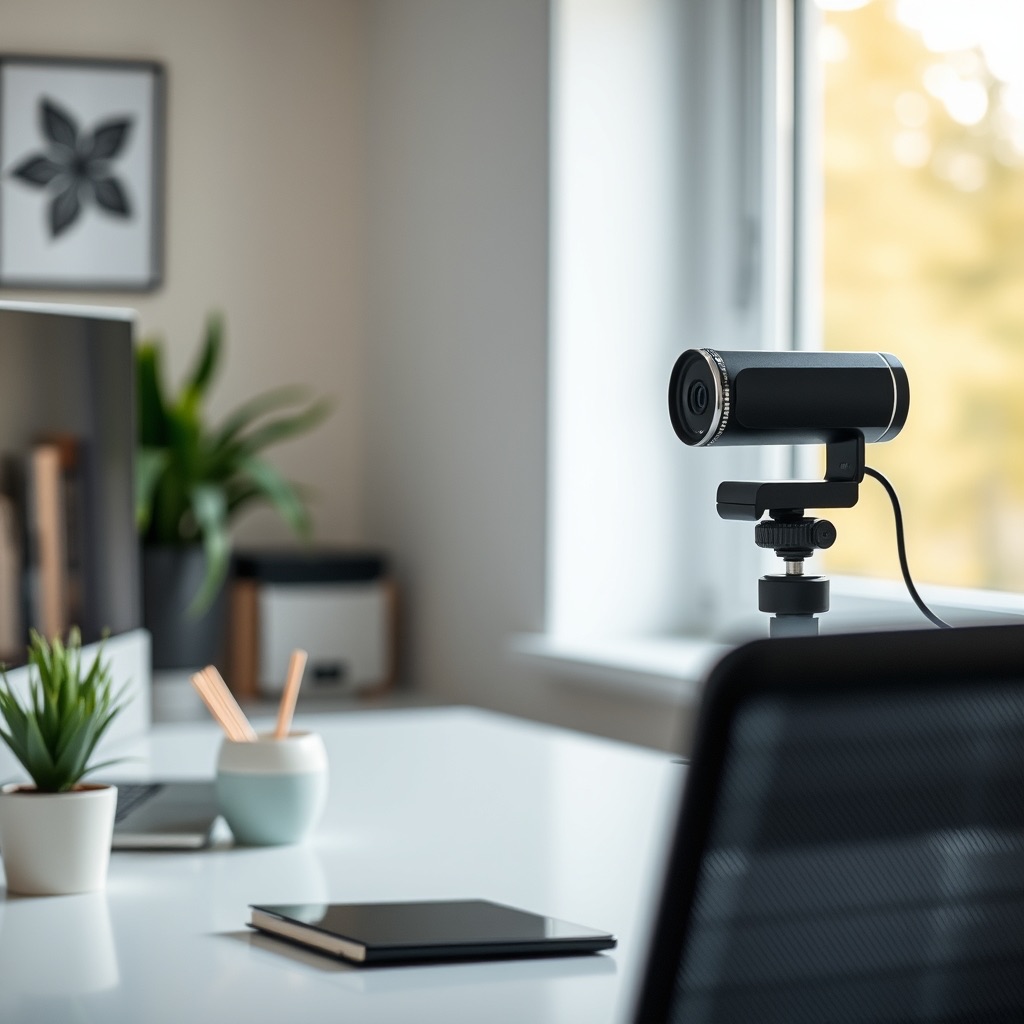
A small room narrows the shortlist
Webcams get sold on resolution and price, but in a small home office the things that decide whether a call looks good are how much of the room the lens takes in, how the camera behaves when the window is behind you, and whether it still works the next time you change laptops. The same 1080p camera can look fine for one person and poor for another, because one sits 50 cm from the screen and the other sits 90 cm away in front of a bare wall.
What follows is what to verify, what to ignore, and where your money is better spent.
Field of view decides your framing
Field of view (FOV) is the angle the lens captures, and common figures run from roughly 60° to 90°. In a small office it matters more than almost anything else, because you cannot back up.
You can estimate the frame width yourself. At 60 cm from the lens, a 60° horizontal FOV captures about 69 cm of width (2 × 60 × tan 30°). Push that to 90° at the same distance and you capture about 120 cm. Head and shoulders is roughly 60 to 70 cm wide, so a 60° camera on the monitor is usually sufficient. A 90° lens in the same spot also shows the empty chair beside you and whatever is on the wall behind.
Wider is not better by default. Perspective distortion grows toward the edges of a wide frame, so a face pushed to the side looks stretched. Software FOV settings do not add information either: cropping narrows the view by throwing away pixels, and digital widening stretches the ones that remain.
One detail worth chasing before you compare two cameras: whether the quoted figure is horizontal or diagonal. A diagonal number is larger for the same lens, so a 90° diagonal specification can behave closer to 78°–82° horizontal, depending on the sensor's aspect ratio — about 82° for 16:9, about 78° for 4:3.
Read resolution and frame rate as a pair
"Full HD" normally means 1920x1080, while "HD" can mean 720p or 1080p, so the word alone tells you little. The useful specification is the native resolution and the frame rate available at that resolution, stated together.
Two traps are common. Some cameras reach a higher advertised resolution by interpolation, which invents pixels and looks softer than a smaller native image. And a 60fps claim usually applies only at 720p, because frame rate and resolution compete for the same connection bandwidth. Check the table of supported modes in the manual rather than the headline number. For desk-based calls, native 1080p at 30fps is a sound baseline; a genuine 60fps mode helps if you gesture a lot, but not at the cost of resolution.
Low light is a sensor and lens problem
How a camera performs in dim conditions depends on how much light reaches the sensor, which comes down to sensor size and aperture. A physically larger sensor collects more light than a small one, and a lower f-number means a wider aperture. As an illustration, a 1/2.9-inch sensor behind an f/2.0 lens typically gathers more light than a smaller sensor behind an f/2.8 lens.
Phrases like "low-light correction" usually describe software gain: the camera multiplies the signal and the noise along with it, so the picture gets brighter and grainier rather than better. Before paying a premium for this, look for a stated sensor format and f-number in the manufacturer documentation, and then look at your room. A lamp placed behind the camera to light your face often does more for a mid-range webcam than a flagship upgrade does. If you cannot move a light or sit near a window, the sensor is worth the money.
Focus, mount, and the connection
Autofocus keeps you sharp when you change distance or hold a document up to the lens, at the cost of speed and sometimes noise. Some units hunt briefly when you lean in, and some are audible. Fixed focus is set at a hyperfocal distance, so everything past a certain range is acceptably sharp. If you always sit in the same chair, fixed focus is often adequate and has one less thing to fail.
Mounting is where inexpensive cameras give themselves away. A clip that flexes on a thin laptop lid, or a hinge that sags under the camera's weight, wobbles every time you type hard. Stiff hinges and a weighted base are the durability signals. A monitor-top clip and a small stand solve different problems, so decide which your desk can accommodate before ordering.
Check the USB requirement too. USB 2.0 has a theoretical signalling rate of 480 Mbit/s before protocol overhead. Uncompressed 1080p30 in YUY2, at two bytes per pixel, needs roughly 995 Mbit/s, which USB 2.0 cannot deliver. That is why webcams compress: MJPEG and H.264 both cut the data rate, and H.264 does it more efficiently but can add latency. If a camera promises high resolution and high frame rate, confirm which USB version and which compression format are required to reach that mode.
Audio, privacy, and software
Built-in microphones vary more than the video specifications suggest, and the details that matter are easy to check: mono or stereo, and the pickup pattern. A microphone that hears the whole room is a liability in a small flat with hard walls. "Noise-canceling" in a webcam listing usually refers to basic processing and will not rescue a bad acoustic space. If call clarity matters more than picture quality, a separate microphone — helped by a rug or other soft furnishing that tames reflections — will usually improve things more than a built-in array can.
Insist on a physical privacy shutter. A software privacy mode depends on the software behaving, and a lens cover does not. Check whether the shutter is integrated or an adhesive accessory; stick-on covers can fall off or sit over the lens badly.
The compatibility baseline is USB Video Class (UVC), a standard from the USB Implementers Forum that lets a camera run without extra drivers on most operating systems. UVC covers the basics in Zoom, Teams, and browsers. Advanced features such as automatic framing, HDR, or background replacement often need the manufacturer's own software and may not be available in every application, so check the feature in the application you actually use before you rely on it. For resolution, frame rate, FOV, USB version, and compatibility, manufacturer spec sheets and manuals are more dependable than retail listings.
Buying checklist
- Native resolution and the frame rate available at that resolution, taken from the manual rather than the box
- Whether any higher resolution or 60fps claim is native, and at which mode the high setting actually applies
- Horizontal field of view — and whether a quoted figure is horizontal or diagonal — checked against your camera distance using 2 × distance × tan(FOV ÷ 2)
- Sensor format and lens f-number, rather than a named low-light mode
- Focus type, and whether the autofocus mechanism is described as slow or audible
- Microphone type and pickup pattern, not the word "noise-canceling"
- Physical privacy shutter, integrated rather than adhesive
- UVC compliance for driver-free use, plus a list of features that need proprietary software
- USB version and the compression formats supported in the mode you want
- Mount type, hinge stiffness, and stability on your monitor thickness
Five webcams for a small home office
Prices below come from each seller's own U.S. product page, read on 27 October 2026, and every camera was available direct from that seller. On a small desk, what separates these five is the top frame rate, the sensor size, and how much of the room the lens takes in. Resolution matters less than those three once the light is ordinary.
Logitech C920s Pro HD
$69.99 buys 1080p at 30 fps, a fixed 78 degree diagonal view, autofocus, and two microphones for stereo sound, per Logitech's spec sheet. It is the camera for a lit desk where the calls are meetings and the budget is the constraint, and the flip down privacy shutter is a real feature rather than a spec sheet line. The trade-off is the ceiling: 30 fps, no 4K, and RightLight 2 light correction in place of HDR.
Elgato Facecam MK.2
At $119.99 this is 1080p at 60 fps with an 84 degree view, an f/2.4 lens, fixed focus between 30 and 120 cm, and a Sony STARVIS sensor of 1/2.5 inch, with HDR that caps at 1080p30. The spec sheet lists no microphone, so it suits someone who already has a headset or a desk mic and wants 1080p60 without paying for a 4K sensor. The fixed focus is the compromise: sharp at desk distance, soft if you push the camera back to show the room.
Logitech Brio 4K
$169.99 for 4K at 30 fps (up to 4096 x 2160), 1080p at 60 fps and 720p at 90 fps, with three diagonal view settings of 65, 78 and 90 degrees, autofocus, 5x digital zoom, RightLight 3 with HDR, and an infrared sensor for Windows Hello. It fits a desk where one camera also has to act as a room camera, because the 90 degree setting takes in a second person or a whiteboard and the IR sensor handles sign-in. The 30 fps ceiling at 4K is the catch, so use 1080p60 when hands are in frame.
Logitech MX Brio
$199.99 buys the same 4K30 and 1080p60 frame rates as the Brio 4K, but with an 8.5 megapixel Sony STARVIS sensor, RightLight 5, and dual beamforming microphones. It is the pick for a room that stays dim, since a larger sensor and face based exposure do more for a dark image than another resolution step does. It costs $30 more than the Brio 4K and gives up the IR sensor, the 720p90 mode, and the wider 4096 pixel 4K frame.
Insta360 Link 2
$229.99 buys 4K at 30 fps and 1080p at 60 fps from a 1/2 inch sensor behind an f/1.8 lens, with a fixed 79.5 degree diagonal view, a two axis gimbal, AI tracking, a whiteboard mode, and HDR at every resolution. It is the camera for someone who stands, paces, or writes on a whiteboard mid call, because the gimbal turns instead of cropping and the software follows. The cost is the motor and the app: it is the most expensive camera here, and the tracking and whiteboard modes run through Insta360's Link Controller software.
| Product | Price | Best for | Key spec |
|---|---|---|---|
| Logitech C920s Pro HD | $69.99 | Meetings on a lit desk at the lowest cost | 1080p30, 78° |
| Elgato Facecam MK.2 | $119.99 | Calls and recording with a separate mic | 1080p60, 84°, f/2.4 |
| Logitech Brio 4K | $169.99 | One camera for both calls and the room | 4K30, 65/78/90° |
| Logitech MX Brio | $199.99 | A dim room | 4K30, 8.5MP STARVIS |
| Insta360 Link 2 | $229.99 | Moving around and whiteboards | 4K30, f/1.8, gimbal |
Read across the table: 1080p60 is available on four of the five, the wide views cluster between 78 and 90 degrees, and every low light claim comes down to sensor size, aperture, or processing rather than a number on the front of the box.
Prices change. Every figure was read from the seller's own page on 27 October 2026. Logitech shows one price per camera and runs cart level promotions on top of it, the Insta360 figure is for the standard bundle, and none of the five includes tax or shipping. Check the current price before ordering.
Sources
Camera choice is only part of a call setup. The monitor guide covers screen height and viewing distance, the task lighting guide covers the light on your face, and the headset versus desk microphone guide covers the audio half of the call.
Frequently asked questions
What resolution do I need for a webcam?
1080p is enough for most calls, and 1080p at 60 fps looks smoother than 4K at 30 fps when you move. A 4K sensor helps most when you crop or when the room is dim, not because the call window shows more pixels.
Does a webcam work in low light?
It depends on the sensor and the lens aperture more than the resolution. A larger sensor and a wider aperture gather more light; software brightening adds noise. Put a light source in front of you before buying a more expensive camera.
What field of view is best for a small room?
A 78 to 90 degree diagonal view covers one person at a desk without showing the whole room. A wider lens includes more background and makes your face smaller in the frame.
Do I need a tripod or a monitor mount?
Most webcams include a clip that sits on a monitor or a laptop lid. A tripod helps when the monitor is too high or too thin for the clip, or when you want the camera at eye level.
Is a 4K webcam worth it?
Only if you crop, record, or need the extra detail for a large display. For a standard video call, a 1080p camera with a good sensor and good light is the better buy.
Sources and further reading
- USB Video Class specification, USB Implementers Forum (driver-free compatibility)
- Manufacturer specification sheets and manuals, for native resolution, frame rate, field of view, USB version, and compatibility
The remaining figures in this article are arithmetic worked from camera distance and field of view, or general guidance, rather than sourced claims.